
PDF Print Orders
Create Documents for Shopify Draft Orders
Search and filter draft orders, then preview or generate documents before or after an invoice is sent.
Draft documents are suitable for quotes and pre-order review. Regenerate after material changes.
1
Find the correct draft
- Search by draft number or customer.
- Choose Open drafts, Invoice sent, or Completed.
- Confirm draft number, customer, date, total, and status in the first complete row.
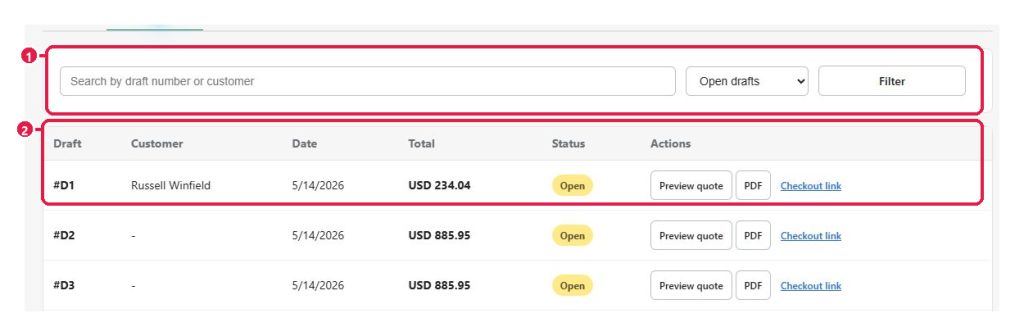
Expected result: The intended draft appears with the expected status.
2
Preview the quote
- Select Preview quote at marker 2.
- Check items, discounts, taxes, shipping, customer, and totals.
- Return to Shopify if the draft needs correction.
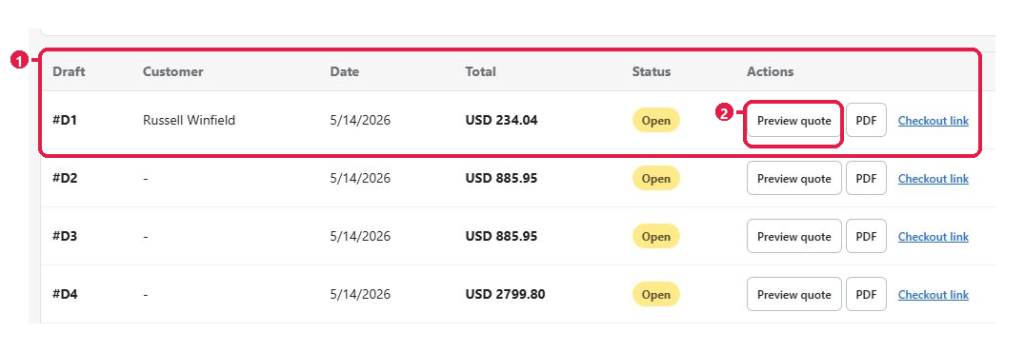
Expected result: The preview matches the current draft in Shopify.
3
Download or continue checkout
- Select PDF at marker 1 to download.
- Select Checkout link at marker 2 only when continuing checkout.
- Generate a new PDF after any draft edit.
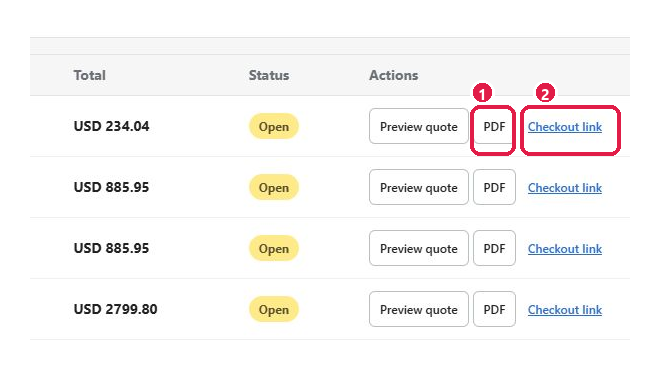
Expected result: The PDF is current, or the link opens the matching draft checkout.
Tip: If a draft is missing, clear the search and reset the status filter.
This guide was last updated on July 13, 2026.