
PDF Print Orders
Getting Started with PDF Print Orders
Open the app, understand its workspace, and create your first Shopify order document.
Follow these three steps to open the embedded app, verify a test order, and download a checked PDF.
1
Open the correct workspace
- Open Apps in Shopify Admin.
- Select PDF Print Orders.
- Use Orders, Draft Orders, Templates, Print History, or Settings for the workflow shown in the navigation.
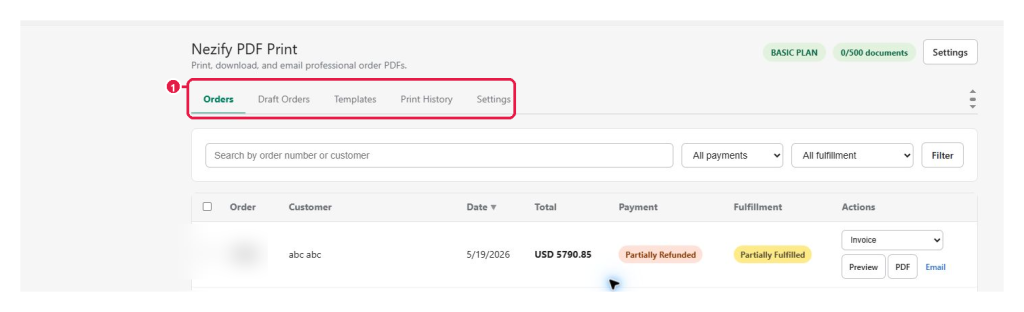
Expected result: Orders is active and the order table is visible.
2
Locate a safe test order
- Search by order number or customer.
- Optionally choose payment and fulfillment filters.
- Compare the first result with Shopify Admin before continuing.
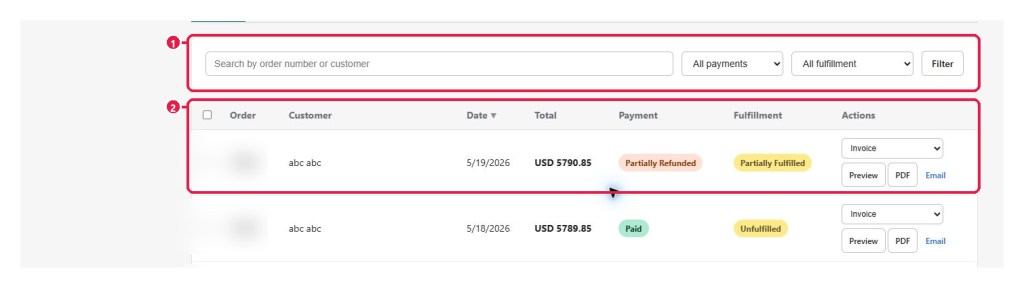
Expected result: The intended test order is visible with matching total and statuses.
3
Preview and download the first PDF
- Choose the document type at marker 1.
- Select Preview at marker 2 and check all customer-facing values.
- Select PDF at marker 3.
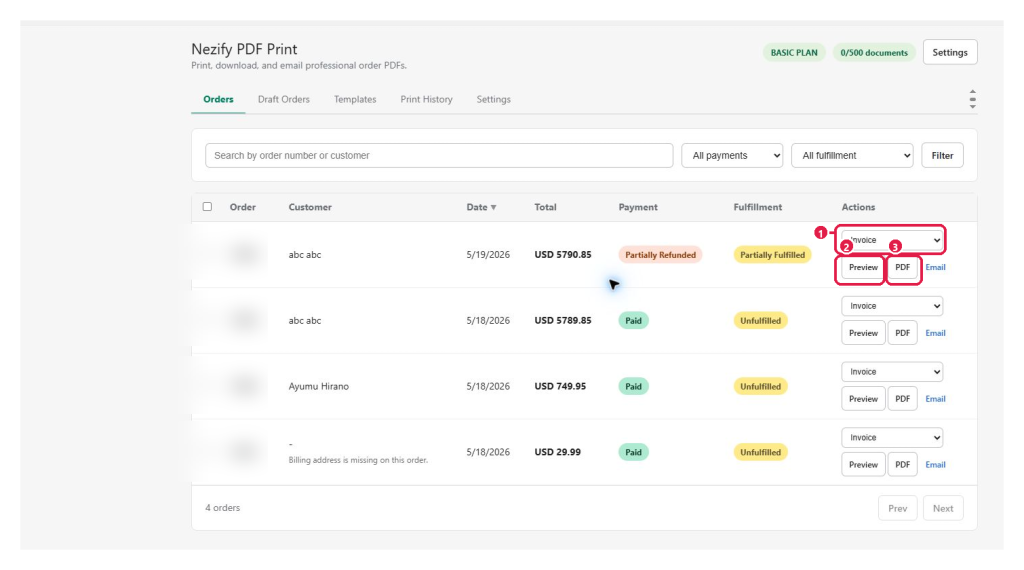
Expected result: The PDF downloads with the same content approved in Preview.
Tip: Preview again after changing a template, identity field, or document option.
This guide was last updated on July 13, 2026.