
PDF Print Orders
Configure File Names, Automation, and PDF Security
Set business identity, file-name patterns, automatic email rules, and protected PDF links.
Settings controls legal identity, generated names, automatic delivery, and protected access.
1
Enter the legal business identity
- Enter the registered company name and Tax/VAT ID.
- Add registration number, payment terms, purchase-order attribute key, and legal address when applicable.
- Leave optional fields empty instead of adding placeholders.
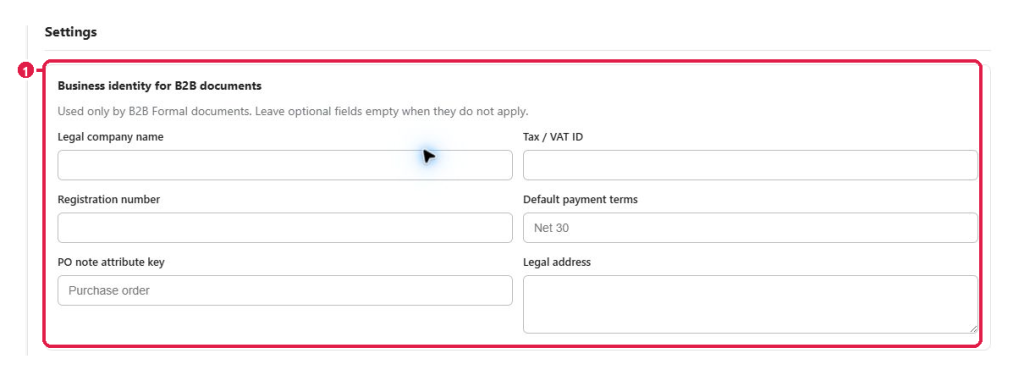
Expected result: A B2B Formal preview shows the correct legal identity.
2
Define single and bulk file names
Use readable tokens such as {{document_type}}, {{document_number}}, and {{job_id}}. Avoid slashes, backslashes, colons, and other invalid file-name characters.
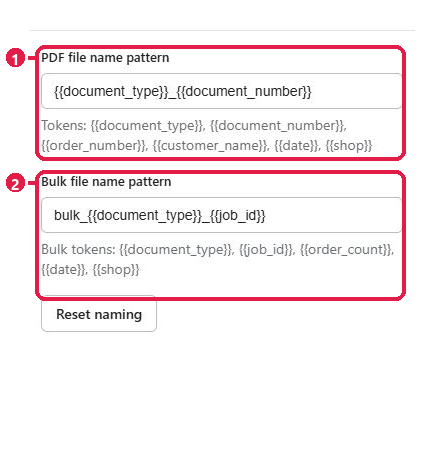
Expected result: A test download has a readable name with tokens replaced by values.
3
Enable automation after security checks
- Configure SMTP before enabling automatic email at marker 1.
- Restrict delivery to paid orders when appropriate.
- Keep token-protected links and Shopify-session previews enabled at marker 2.
- Run one test order before live automation.
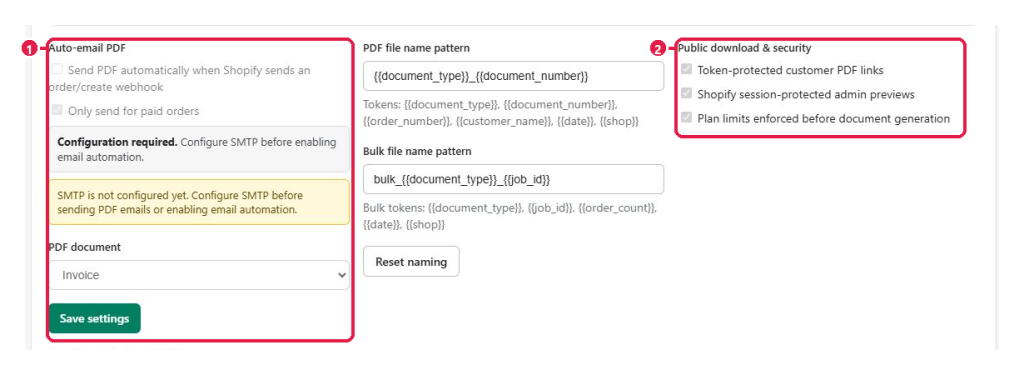
Expected result: The test email arrives and protected links still require valid access.
Tip: Never publish a PDF security token; rotate it if exposure is suspected.
This guide was last updated on July 13, 2026.